
Thank you for choosing WHAMetrics Companion.
Thank you for signing up. Now, let’s get you set up.
Download Your Companion App
Download the WHAMetrics Companion app to your phone from here:
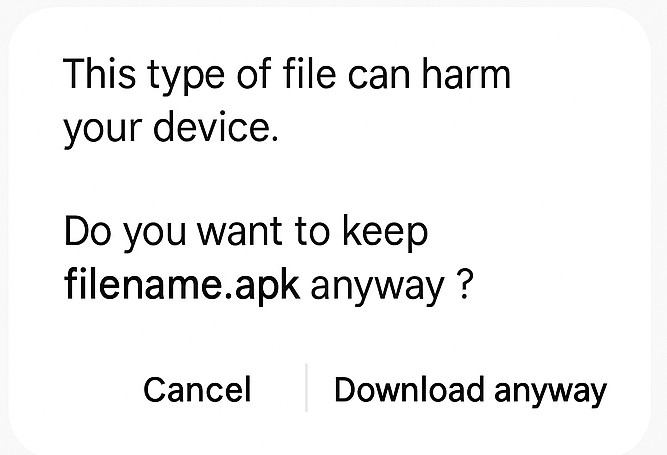
- You will see a warning that “the file may harm your device”, since you are downloading an APK app. Tap Download anyway.
- The download will begin, and you will see its progress in your notification area or at the bottom of Chrome.
- Once the app finishes downloading, tap Open from the download bar in Chrome or from your notification area.
- You may see a prompt stating: “For your security, your phone is not allowed to install unknown apps from this source.”
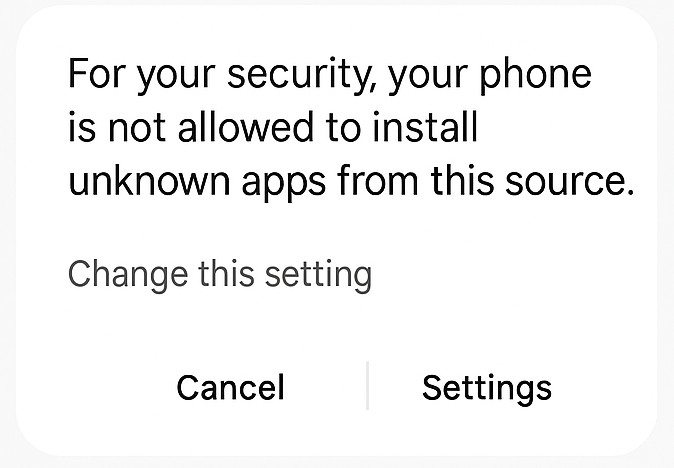
- If you do, tap Settings on that prompt.
- Toggle Allow from this source to On.
- Press the back arrow to return to the installation screen.
- You will see the installation screen showing the app’s name and requested permissions.
- Tap Install.
- Follow the prompts to set up your Companion app.


Set Up Your Companion App
Once install, open the Companion app on your phone.
It will guide you through the installation process. As part of that, it will show you how to enhance your WhatsApp backup, so that you have control of your backup, and can access it yourself – not just WhatsApp or Google.
Once your are done with the setup process, you will see a button to open the Companion Console and start using your Companion.
Searching For WhatsApp Messages
To search your WhatsApp messages, tap the “Search” tab in your Companion Console.
Once there, you can:
- Select the date range you’d like to search: e.g. messages from last week, last month, all time or a custom range
- Enter the text you remember from your message (e.g. “agreement”, “recipe”, “reminder”)
- Enter the name of a group or contact you’d like to search (by default, it searches all messages)
- Enter a phone number that you’d like to search for
Then, simply click “Search” to have the Companion look up your messages. Results will appear below.
You can then further filter the results – for example, if you’ve searched for “recipe”, you can click the text filter on the Message column header, and enter “chicken” to find recipes that include that word.
