
How to Analyze WhatsApp Groups and Communities
WhatsApp Group Analytics is incredibly important any time you are dealing with WhatsApp Groups in any significant capacity. Businesses, education, social communities – WhatsApp groups are used everywhere. Natively, they don’t offer any capacity to analyze group data. Fortunately, there is a way to get incredibly detailed analytics for WhatsApp groups using WHAMetrics, a tool that allows you to analyze WhatsApp group data.
Short answer: use WHAMetrics - WhatsApp has no built-in analytics for groups or communities. Add your groups to the WHAMetrics console to see growth, reactions, engaged members, the best time to post and where members are from, for one group or several combined.
Here are just some questions you can answer using WHAMetrics analytics for WhatsApp Groups:
- How is the WhatsApp group growing over time?
- Which messages get the most reactions?
- Which users are most engaged?
- When is the best time to post?
- Where are the members from?
- How many unique members are in a bunch of groups that I have?
- Which events contributed the most to group growth?
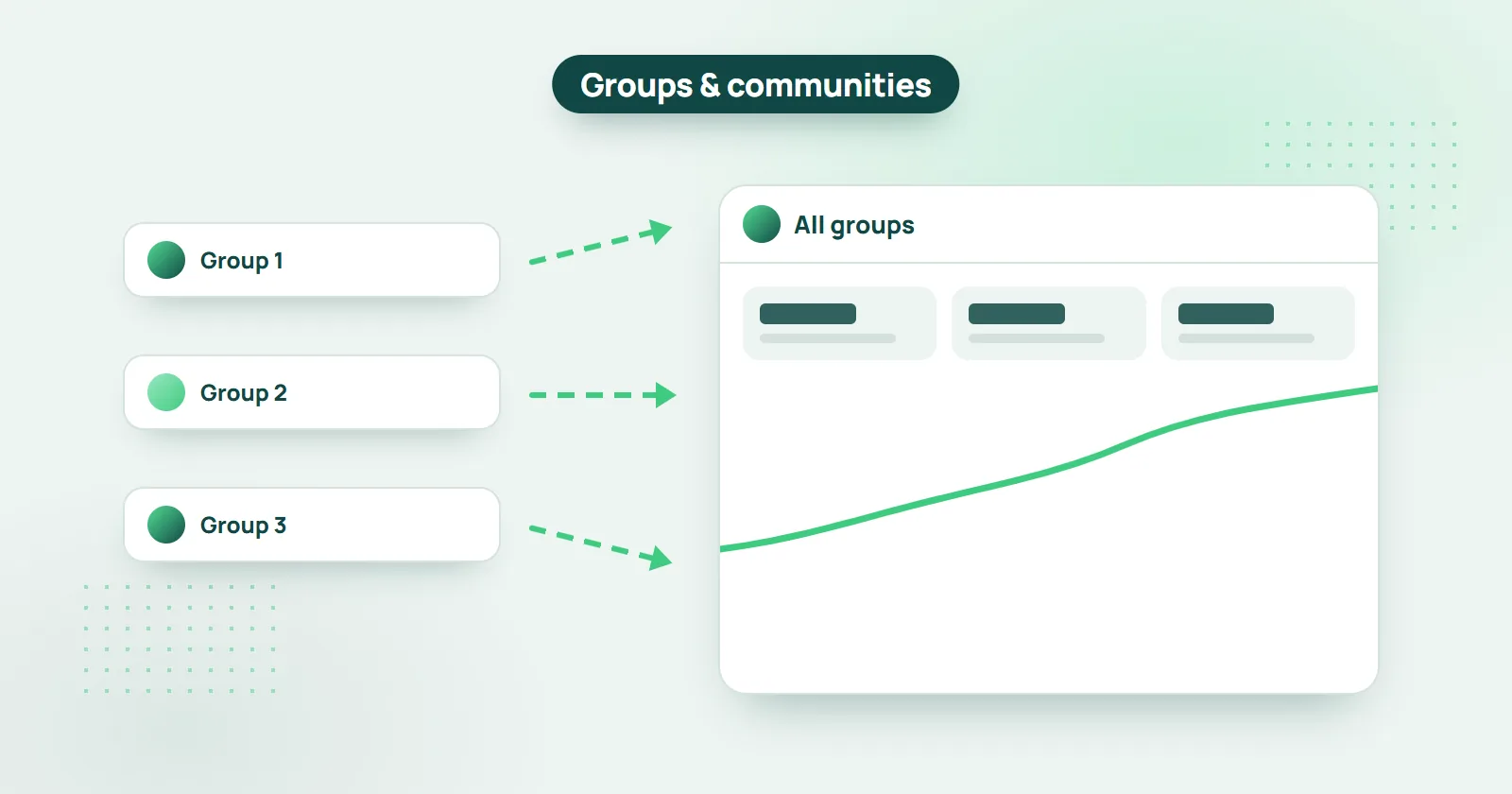
In addition to analyzing a single group, WHAMetrics allows to analyze multiple WhatsApp groups as a single “meta group”, treating them as one single large group. This is especially useful when you have a number of groups related to each other, part of the same project or community. This allows to easily analyze how your overall community is behaving, growing, and trending – instead of going group by group.
Does WhatsApp have analytics for groups and communities?
No. WhatsApp itself does not provide analytics on groups or communities, but you can analyze your groups in detail with a third-party service called WHAMetrics: sign in on WHAMetrics.com and add the group (or groups) you'd like to analyze. No need to install anything.
How to Use WhatsApp Group Analytics
- Log in to WHAMetrics console (available here)
- Add the groups that you’d like to analyze
- Once the group is added to WHAMetrics, it will start gathering info, and after a while – you will see analytics and insights
- As soon as the group is added, you can see its members, and geo location chart of those members
- Note that if you’d like to analyze multiple WhatsApp groups at the same time, you can select them all in the console, and they will be shown as one “meta-group” in the console
How do I see how fast a WhatsApp group is growing?
WHAMetrics shows it on the “group size” graph: the group's growth history over time, with the dates that stand out - the events that caused a jump in new members. If you manage many groups, you can combine them and see one overall growth trend for your entire membership.

How can I see where WhatsApp group members are from?
Once you add the WhatsApp group in WHAMetrics, you’ll immediately see a geographical breakdown stats of the members, by country. Who knows, maybe you have someone from Antarctica there?

Which messages get the most reactions in a WhatsApp group?
WHAMetrics shows it on the Messages tab: select the group and click the “Reactions” column to sort its messages by number of reactions, and see which reactions each one got.
Knowing what your audience likes (or dislikes) is key for strong engagement. Which messages get the most reactions? Which messages are most loved – or most hated?
WHAMetrics shows that on the Messages tab.
Select the group (or groups) that you’d like to analyze, and you will see its messages at the bottom.
Now, you can simply click the “Reactions” column to sort by number of reactions to the messages, and see which reactions those were.
(If multiple users are allowed to post in the group, this is also a good way to find which users receive the most engagement)

How do I find the most engaged members of a WhatsApp group?
There are two primary ways to measure member engagement in a WhatsApp group: reactions, and messages. Reactions are more universal, since they are allowed even in groups where only admins can post. And when members are allowed to post as well, engagement can also be measured in terms of number of messages posted, and number of replies.
Note that some users may be highly engaged with reactions, but not with messages (i.e. they don’t post much, but do react to posts). Others may not be quick to react, but instead post often. As for replies, these are somewhere in between messages and reactions – a member having a high reply count, indicates that the member is causing a stir in the group.
WHAMetrics shows all of those analytics data points, per member, in the Members list. Naturally, you can sort and filter members, to find which are the most engaged by any (or all) of those metrics.

When is the best time to post in a WhatsApp group?
When choosing the best time for your post, you can analyze past data for the group to check when the group has most posts (e.g. – busiest), or what times have the most engaged posts. This way, you can time your most important messages to hit just the right spot.

How many unique members do my WhatsApp groups have in total?
Select all of your groups in WHAMetrics and it shows the number of unique members across them on the Members tab, right above the member list - the real size of your audience.
Often, you’ll find yourself managing multiple groups, that are essentially “branches” of the same overarching campaign, or “meta-group”. In such case, it makes more sense to treat all of those groups as one “meta-group” in terms of WhatsApp statistics and analytics.
WHAMetrics allows you to do just that – simply mark all of the groups, and it will show you the anlytics for all of them as one, including all of the various stats described in this article.
A special type of data point for WhatsApp groups when selected together is number of unique members in those groups. You will see it on the Members tab, right about the member list. This way, you can know exactly how many members you really have. And if you are selling ads in your groups, you can use these stats as a proven number of total unique viewers that those ads receive.
